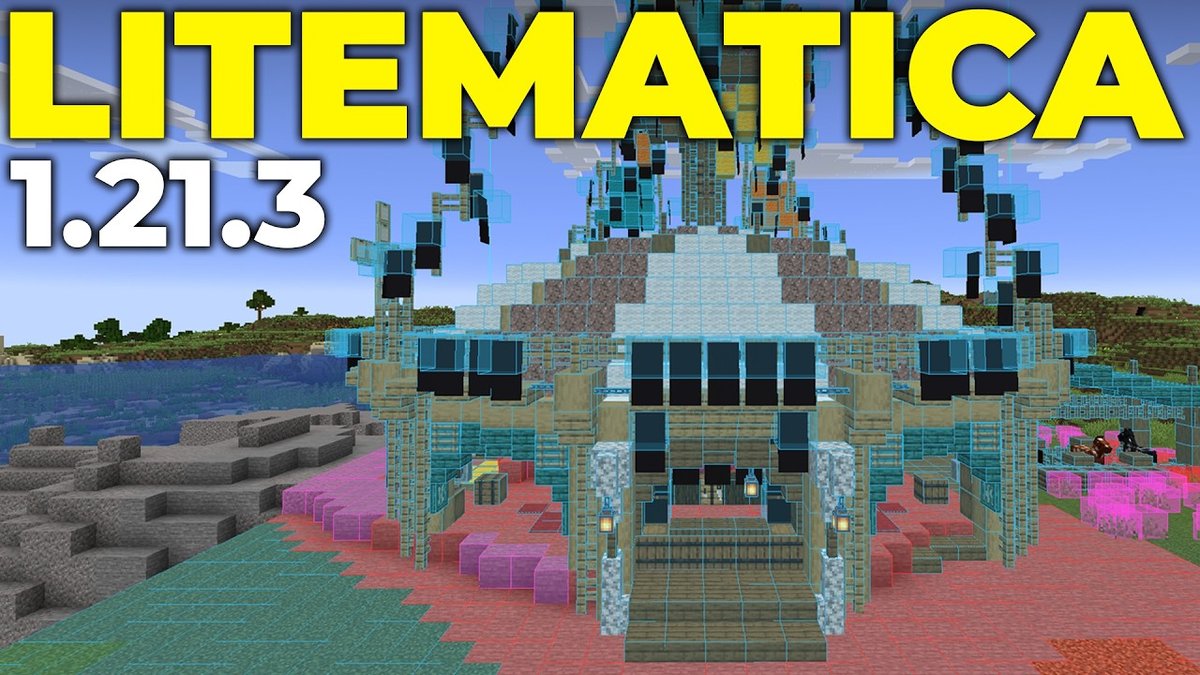
Minecraft's most ambitious builders know Litematica isn't just a mod; it's an indispensable co-pilot for crafting epic structures. But even the best co-pilots need a tune-up now and then. If you've found yourself wrestling with lag, glitchy holograms, or baffling hotkey conflicts, you're in the right place. This comprehensive guide on Litematica 1.21.8 Troubleshooting & Optimisation will help you iron out the kinks and supercharge your building experience, transforming frustration into fluid creation.
Think of Litematica as your in-game architectural assistant, projecting intricate 3D blueprints directly into your world. Whether you're a redstone wizard meticulously placing components or a grand-scale artist laying out cityscapes, Litematica offers precision and efficiency. Our goal here is to ensure this powerful tool performs flawlessly, helping you build faster, smarter, and with far less headache.
At a Glance: Your Quick Fixes & Boosts
- Lag Spike? Reduce render distance, simplify Litematica's overlay, and check your Minecraft's allocated RAM.
- Holograms Acting Weird? Turn off internal shaders, disable "Render Regions," and toggle "Fast Render" in Litematica's config (
M + C). Update your Litematica version. - Hotkeys Not Working? Remember Litematica uses
malilib's custom keybind system, not vanilla controls. Access them viaM + C -> Hotkeys. - Placement Glitching? Lock your schematic placement to prevent accidental shifts.
- Building Large? Utilize Render Layers to focus on one section at a time, significantly reducing visual clutter and potential lag.
- Installation Issues? Ensure your Fabric (or other loader) version matches your Minecraft and Litematica versions precisely. Always place Litematica's
.jarfile directly into your.minecraft/modsfolder.
The Foundation: Understanding Litematica's Core for 1.21.8
Before we dive into the nitty-gritty of fixing things, let's briefly recap what makes Litematica tick, especially for the 1.21.8 iteration. This client-side schematic mod is renowned for its holographic blueprints, allowing you to visualize complex builds with pinpoint accuracy. It's not just a viewer; Litematica provides advanced tools for importing, exporting, editing, and even verifying structures.
For 1.21.8, Litematica primarily relies on the Fabric Mod Loader, though it also supports Rift for older versions (1.13.x) and LiteLoader (1.12.x), with Forge versions available for 1.12.2 and ongoing development for 1.14.4+. This multi-loader compatibility is a blessing, but also a common source of installation woes if not handled correctly. Its core strength lies in features like:
- Holographic Blueprints: The visual guide to place blocks perfectly.
- Configurable Overlay: Highlighting missing, extra, or incorrectly placed blocks.
- Material List Mastery: An intuitive HUD to track all required resources.
- Schematic Verifier: Essential for technical builds, scanning for errors.
- Creative-Mode Helper Toolbox: Tools like Fill, Replace, Delete, and Paste for easy world manipulation in creative mode or via
/setblockin multiplayer.
Understanding these foundational aspects is key to effective troubleshooting and optimization. For a complete deep dive into all Litematica 1.21.8 has to offer, including how to get started with creating your first schematic, check out our Litematica 1.21.8 Guide.
Getting Started Right: Essential Setup & Configuration
Many Litematica issues stem from an incorrect initial setup or overlooking crucial configuration details. Let’s ensure your foundation is solid.
Installation Checklist: Avoiding the First Hurdle
Installing Litematica should be straightforward, but version mismatches or incorrect folder placement are common pitfalls.
- Mod Loader First: Always install your chosen mod loader (Fabric is dominant for 1.21.8) before adding Litematica.
- Download and run the Fabric Installer (using Java).
- Select the correct Minecraft version (e.g., 1.21.8) and click "Install."
- Download Litematica: Get the correct Litematica
.jarfile for your Minecraft and Fabric version. You'll often also needmalilib.jaras a dependency; download that too. - Correct Placement:
- Press
Windows Key + R, then type%appdata%and hit Enter. - Navigate to
.minecraft. - Locate (or create if it doesn't exist) the
modsfolder. - Drag and drop both your Litematica and
malilib.jarfiles into thismodsfolder. Do not extract them, and do not place them in subfolders.
- Launch Minecraft: Open your Minecraft Launcher, select the 'Fabric' profile from the dropdown menu next to the 'Play' button, and launch.
Troubleshooting Tip: If Minecraft crashes immediately, double-check that all three components—Minecraft, Fabric, and Litematica/malilib—are for the exact same version (e.g., all for 1.21.8). Also, ensure you have an up-to-date Java installation.
Initial Configuration Pitfalls: Mastering the Menus
Once in-game, accessing Litematica’s features requires knowing its unique control scheme.
- Main Menu: By default, press
Mto open the Litematica main menu. This is your command center for loading schematics, managing placements, and accessing other tools. - Configuration GUI: To dive into detailed settings, press
M + C(or, + Con AZERTY layouts). This is where you'll tweak render settings, overlay options, and most importantly, hotkeys. - Hotkey System: This is a major point of confusion for new users. Litematica uses
malilib's custom keybind system, not Minecraft's vanilla controls menu. If you're struggling with a hotkey, go toM + C -> Hotkeysto configure or rebind them. This independent system prevents conflicts with vanilla controls but requires a different approach to customization.
Common Litematica Troubleshooting Scenarios & Solutions
Let's tackle the specific issues you might encounter while using Litematica.
Problem: Visual Glitches & Rendering Quirks
Strange triangles, flickering holograms, or parts of the overlay disappearing are common complaints.
Solutions:
- Update Litematica: Especially for Minecraft 1.16+, developers frequently push updates to address rendering bugs. Always ensure you're on the latest stable version.
- Shader Settings:
- If you're using OptiFine or a similar mod, set your shader to
OFF(notInternal). External shaders can often conflict with Litematica's rendering engine. Restart your game after making this change.
- Disable Render Regions: This setting can cause visual artifacts. In Litematica's configuration (
M + C), find and disable "Render Regions." - Disable Fast Render: If GUI or HUD elements (like the Material List) look odd, disabling "Fast Render" in Litematica's config can resolve it.
- Check Graphics Drivers: Ensure your graphics card drivers are up to date. Outdated drivers can cause a myriad of rendering problems across all Minecraft mods.
Problem: Performance Hiccups & Lag
Large schematics or complex overlays can bring even powerful systems to a crawl.
Solutions:
- Reduce Render Distance: This is the most impactful setting for overall Minecraft performance. Lowering it in vanilla video settings will directly benefit Litematica's rendering.
- Simplify Litematica Overlay:
- In
M + C -> Render Settings, reduce the complexity of the overlay. You might not need every block highlighted, or the full boundary box at all times. - Consider disabling the Schematic Verifier unless actively using it, as it constantly scans the world.
- Utilize Render Layers: This feature is a game-changer for large builds. Instead of rendering the entire schematic, you can choose to render only one layer (or a few) at a time.
- Access via
M + Page Up/Down(to toggle mode),M + Home(to move the layer to your position), or justPage Up/Down(to shift the layer up/down). This dramatically reduces the number of blocks Litematica needs to render simultaneously.
- Allocate More RAM: For Minecraft, especially with mods, 4-8GB of RAM is often ideal. Check your Minecraft Launcher settings to ensure sufficient RAM is allocated. Going too high can sometimes be detrimental, so find a sweet spot.
- Performance Mods: Consider complementary Fabric mods like Sodium, Lithium, and Iris Shaders (if you still want shaders) for significant FPS boosts that benefit Litematica's performance too. These mods are specifically designed to optimize Minecraft's rendering and backend processes.
Problem: Hotkey Conflicts & Unresponsive Menus
You press M, and nothing happens, or a different mod's menu pops up.
Solutions:
- malilib Keybinds: Reiterate that Litematica's hotkeys are managed within
M + C -> Hotkeys. If a key isn't working, it might be unbound or conflicting. - Mod Conflicts: Other mods might be using the same default keybinds. The
malilibhotkey editor will usually indicate conflicts. Rebind the Litematica hotkey or the conflicting mod's hotkey. - Check Accessibility Settings: Rarely, OS-level accessibility features can interfere with certain key combinations.
- Tool Item Specificity: Some Litematica hotkeys, particularly those for Area Selection or Schematic Placement, require you to be holding the designated "tool item" (default is a stick or a custom item if configured) to function. Ensure you have the right item in hand.
Problem: Schematic Loading/Saving Errors
You've built something great, but it won't save, or your downloaded schematic won't load.
Solutions:
- Correct Directory: Schematics must be placed in or saved to the
.minecraft/schematics/folder. Any other location won't be recognized by Litematica. - File Integrity:
- Loading: Ensure the
.litematicfile isn't corrupted or incomplete. Try re-downloading or re-exporting it if possible. - Saving: Make sure Minecraft (and Litematica) has write permissions to the
.minecraft/schematics/folder. Sometimes antivirus software or Windows permissions can block this.
- Unique Names: While not always an error, using unique and descriptive names for your schematics helps prevent confusion and potential overwrites.
- Region Selection: When saving, ensure your area selection is properly defined (two corners set). If the selection isn't valid, Litematica won't save.
Problem: Creative Mode Helper Tools Not Working
The Fill, Replace, Delete, or Paste functions aren't executing as expected.
Solutions:
- Area Selection Mode: Ensure you're in the correct Area Selection mode and have a valid region selected. These tools operate within a defined boundary.
- Tool Item: You typically need to hold the Litematica tool item (default stick) to activate these creative mode functions, often combined with modifier keys.
- Single Player vs. Multiplayer:
- In single-player, these tools often execute directly.
- In multiplayer, the Paste functionality (and sometimes others) is often limited to generating
/setblockcommands that you then execute manually or require operator permissions. Litematica cannot bypass server-side protections.
- Confirm Permissions: If on a server, ensure you have the necessary operator permissions (
op) to execute/setblockor/fillcommands.
Optimizing Litematica for Peak Performance
Troubleshooting gets you working; optimization helps you thrive. Let’s make Litematica fly.
Graphics & Render Settings Deep Dive
Fine-tuning your visual settings is paramount for a smooth Litematica experience.
- Vanilla Minecraft Settings:
- Render Distance: As mentioned, lower values equal higher FPS. Experiment to find your sweet spot.
- Graphics Quality: Fast graphics, fewer particles, and lower quality textures reduce GPU load.
- V-Sync: Enable it to prevent screen tearing, but disable it if you're chasing maximum FPS and don't mind tearing.
- Litematica-Specific Render Settings (
M + C-> Render Settings):
- Overlay Render Mode:
Solid: Highest impact, but clearest visualization.Outline: Lower impact, good for seeing through blocks.Wireframe: Lowest impact, but can be hard to discern details.- Display Modes: Toggle
Missing blocks,Extra blocks,Incorrect blocksonly when needed. Having all enabled constantly adds overhead. - Schematic Verifier: This feature, while powerful, constantly compares your world to the schematic. Disable it (
M + C-> Generic settings, findschematicVerifierEnabled) if you're not actively debugging a build. - Visibility Distance: Reduce the distance at which the schematic is rendered. Why render something far away if you're building close up?
- Render Layers: This is your best friend for performance. By rendering only the layer you're currently working on, you drastically reduce the number of blocks Litematica has to display. Use
M + Page Up/Downto cycle through modes (all, current layer, range).
Advanced Hotkey Management for Workflow Efficiency
Litematica’s custom keybinds, while initially daunting, offer immense power for customizing your workflow.
- Personalize Your Toolkit: Go to
M + C -> Hotkeys. Don't be afraid to rebind frequently used actions to easily accessible keys. For example, moving schematic placements, toggling render layers, or swapping between Area Selection and Placement modes. - Modifier Key Magic: Learn the modifier keys (
Ctrl,Alt,Shift) in conjunction with your mouse clicks.
Ctrl + Scrollwhile holding the tool item switches modes (Area Selection, Placement, etc.).Alt + Scrollmoves the selected corner in Area Selection mode or the entire placement in Placement mode.- These save countless trips to the main menu.
- Macros (External Tools): While Litematica doesn't have built-in macro support, some players use external keyboard/mouse software or other client-side mods (like Tweakeroo, which integrates well with malilib) to create complex macro sequences for common Litematica operations. This is for advanced users and typically falls outside Litematica's direct scope.
Streamlining Schematic Workflow
Efficiency isn't just about FPS; it's about how smoothly you can interact with the mod.
- Efficient Area Selection:
- Simple vs. Normal Mode: For quick, single-box selections, use
Simplemode. For complex, multi-region builds,Normalmode is invaluable. Master switching between them (Ctrl + scrollwith tool item). - Expand Mode (
Ctrl + Mor Generic config tab): This feature lets you click a block to set your selection, then click blocks on the edges of your build to automatically expand the selection box. It's incredibly fast for large, rectangular areas.
- Organize Your Schematics: Create subfolders within
.minecraft/schematics/for different projects, types of builds (farms, redstone, houses), or authors. A well-organized library makes finding and loading schematics much quicker. - Mastering Schematic Rebuild/Edit:
- Modifier Keys for Speed: When editing a loaded schematic (using the tool item in
Schematic Rebuild/Edit Schematicmode): - Just clicking/breaking blocks within the schematic will remove them from the overlay.
Right-clickwith a block in hand places it.- Use the "Direction" variant (often
Shift + click) for continuous destruction or placement in a straight line. - The powerful "All" variant (bind
schematicRebuildReplaceAllhotkey) lets youShift + Right-click(with a block in hand) a block in the schematic, and all identical blocks within the current render layers or selected sub-region will be replaced! This is a massive time-saver for material swaps. - Confine to Render Layers: Remember that "All" variant operations can be limited by your current Render Layer settings, allowing for targeted block replacements in vertical sections.
System-Level Optimizations Beyond Litematica
While Litematica has its own settings, overall system health contributes significantly to its performance.
- Update Java: Ensure you're running the latest recommended Java version for your Minecraft version. Outdated Java can lead to performance bottlenecks.
- Graphics Driver Updates: Always keep your GPU drivers updated. Manufacturers constantly release performance improvements and bug fixes.
- Close Background Applications: Free up CPU, RAM, and GPU resources by closing unnecessary applications running in the background while playing Minecraft.
- Consider an SSD: If your Minecraft installation is on a traditional Hard Disk Drive (HDD), moving it to a Solid State Drive (SSD) can significantly reduce loading times for worlds and schematics.
Advanced Tips for Litematica Power Users
You've mastered the basics and smoothed out the bumps; now, let's unlock Litematica's full potential.
Leveraging the Schematic Verifier for Precision Builds
The Schematic Verifier isn't just for finding errors; it's a powerful tool for planning. By toggling its display settings, you can visualize discrepancies in real-time. For complex redstone, this means quickly spotting a misplaced repeater or observer. For aesthetic builds, it ensures block palettes are consistent. Use its fine-tuning options in the configuration to adjust its sensitivity and what types of errors it highlights.
Mastering the Material List HUD
The Material List HUD (Heads-Up Display) is more than just a list; it's a dynamic inventory manager. Configure it to show:
- Missing materials: Essential for gathering.
- Present materials: To track what you have.
- Item counts: To see exactly how many of each block you need.
You can even click on items in the list to highlight their placement in the schematic, making material placement incredibly efficient. Integrate it with inventory management mods for an even smoother workflow.
Community & Support
Litematica has an active community. If you encounter a truly unique issue or want to explore advanced features, the official malilib Discord server or relevant Minecraft modding forums are excellent resources. Developers are often present, and fellow users can offer solutions or insights. Staying engaged helps you keep up with updates and new functionalities.
Frequently Asked Questions (FAQs)
Why are my Litematica holograms glitchy or invisible?
This is usually due to conflicting render settings. Ensure your shaders are set to OFF (not Internal) if you use OptiFine. Disable Litematica's "Render Regions" and "Fast Render" settings. Also, verify you have the latest stable Litematica version for your Minecraft version.
How do I fix lag when loading or building with large schematics?
The primary solutions are to reduce your Minecraft render distance, use Litematica's Render Layers feature to only display one layer at a time (M + Page Up/Down), simplify the Overlay Render Mode to Outline or Wireframe, and ensure adequate RAM is allocated to Minecraft. Disabling the Schematic Verifier when not actively debugging can also help significantly.
Can I use Litematica with Forge for Minecraft 1.14.4+?
The ground truth states that Forge versions are available for 1.12.2 and that plans for 1.14.4+ are in development. For versions 1.14.4 and later, Fabric is typically the recommended and most stable mod loader for Litematica. Always check the official download page for the latest compatibility information.
What's the best way to move a loaded schematic placement precisely?
While holding the Litematica tool item in Schematic Placement mode, use Alt + Scroll to move the placement relative to your position. For more precise, block-by-block movement, use the hotkeys configured for moveSchematicPlacement (usually Numpad keys) in M + C -> Hotkeys. You can also manually adjust coordinates in the Schematic Placements menu (M -> Schematic Placements -> Configure).
How do I replace many blocks at once in a schematic, like changing all stone to cobblestone?
Bind the hotkey for schematicRebuildReplaceAll in M + C -> Hotkeys. Then, while in Schematic Rebuild/Edit Schematic mode, hold down that hotkey and Right-click on a stone block in the schematic with cobblestone in your hand. This will replace all visible stone blocks within the schematic (or current Render Layer/sub-region) with cobblestone.
Beyond the Basics: Sustaining Your Litematica Experience
Litematica is a tool that evolves with Minecraft. To ensure your building workflow remains optimized and enjoyable, keep these practices in mind:
- Stay Updated: Regularly check for new Litematica releases. Developers often introduce performance improvements, new features, and bug fixes that directly address common issues. Updating your
malilibdependency is just as important. - Backup Your Worlds & Schematics: Before any major mod updates or Minecraft version changes, always back up your
.minecraftfolder, especially yoursavesandschematicsfolders. This safeguards your hard work against unforeseen compatibility issues. - Engage with the Community: The Minecraft modding community is a fantastic resource. Sharing your experiences, asking questions, and even contributing to discussions can enrich your understanding and help others. Sometimes, a quick search or question in a dedicated forum can reveal a simple fix or a clever optimization trick you hadn't considered.
By understanding Litematica's mechanics, meticulously troubleshooting common snags, and embracing optimization strategies, you're not just fixing problems—you're elevating your entire Minecraft building adventure. Get ready to build bigger, better, and with unparalleled confidence.