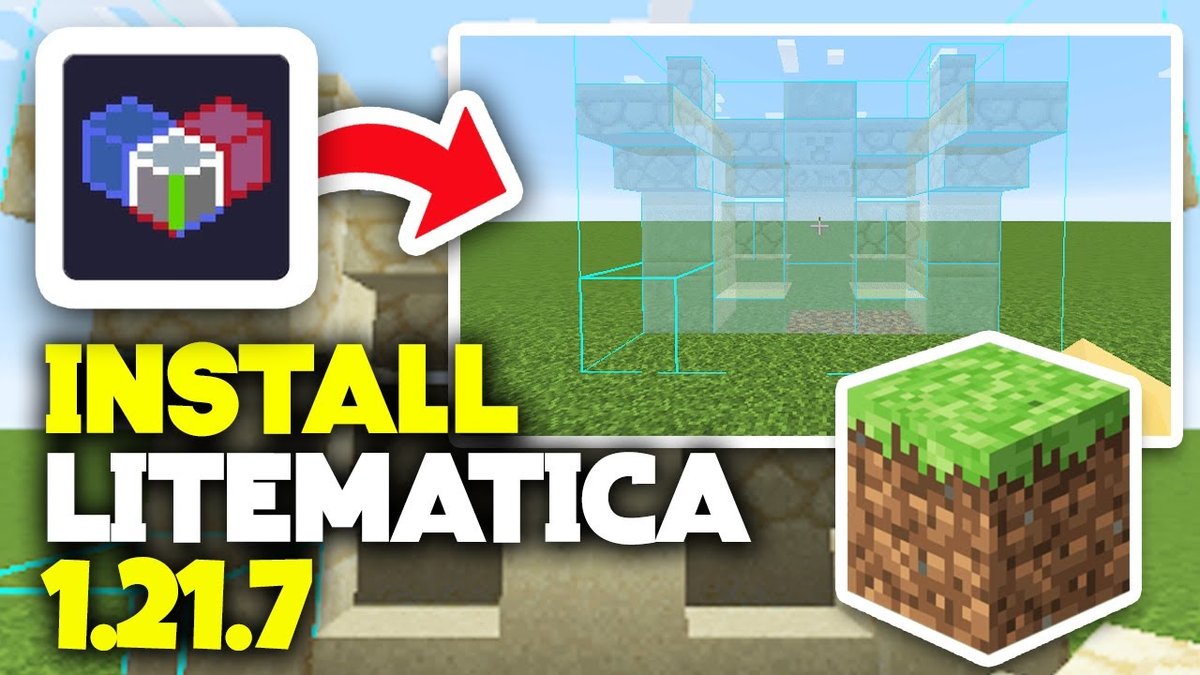
When you embark on ambitious building projects in Minecraft, the sheer scale can be daunting. Replicating intricate designs, aligning complex structures, or even just remembering the exact block placement for a detailed roof can turn a joyful creative endeavor into a repetitive chore. But what if you had a master blueprint, projected directly into your world, guiding your every move? That's precisely where Litematica shines, and mastering Litematica 1.21.8 Basic Schematic Placement is your first step toward becoming a building maestro.
Litematica isn't just another mod; it's a fundamental shift in how you approach large-scale construction. It transforms the often-tedious process of block-by-block replication into an intuitive, guided experience, giving you the power to lay out designs with unprecedented precision and efficiency. Whether you're a casual builder looking to finally finish that castle or a dedicated redstoner needing exact block states, Litematica 1.21.8 provides the tools you need to bring your grandest visions to life.
At a Glance: Your Litematica Checklist
Before we dive deep, here's a quick rundown of what you'll master:
- Install Litematica: Get the mod running smoothly with your Minecraft version.
- Organize Schematics: Know where to store your blueprints for easy access.
- Load Your Blueprint: Import schematics into your world's memory.
- Precisely Place: Position, rotate, and elevate the schematic hologram with ease.
- Start Building: Follow the transparent guide to lay blocks accurately.
- Edit & Refine: Learn to modify schematics directly within your world.
- Paste Instantly: Discover how to automatically place entire structures in Creative mode.
The Blueprint for Your Builds: What Litematica Does
At its heart, Litematica is a client-side mod that allows you to load, view, and manipulate "schematics" – essentially 3D blueprints of Minecraft builds. These schematics appear as transparent holograms in your game world, showing you exactly where each block needs to go. It's like having architectural drawings overlaid on your construction site.
To get started, you'll need to install Litematica on your Minecraft client. This usually involves downloading the correct version of the mod (compatible with your specific Minecraft client version) and placing it into your mods folder. Once installed, your journey to effortless building truly begins.
Your schematic files, which are the blueprints themselves, need to live in a designated spot: the .minecraft/schematics directory. Think of this as your personal architectural archive. Keeping this folder organized with clear names will save you a lot of headache later on.
Loading Your First Blueprint: Step-by-Step Schematic Placement
This is where the magic of Litematica 1.21.8 Basic Schematic Placement truly begins. Follow these steps to bring your digital blueprint into your Minecraft world.
Step 1: Initiate Litematica's Interface
Once Minecraft is launched and you're in a world (or server), press the "M" key on your keyboard. This is your gateway to Litematica's main user interface, a central hub for all its powerful features.
Step 2: Access Your Schematics Repository
Within the Litematica interface, look for and click the "Load Schematics" button. This will open a new window, displaying all the schematic files you've meticulously organized in your .minecraft/schematics directory.
Step 3: Select Your Desired Schematic
Browse through your list of blueprints. Found the one you want? Select it, then click the "Load Schematic" button. Don't worry, it won't instantly appear in your world yet; it's just loaded into Litematica's memory, ready for placement.
Step 4: Prepare Your Building Canvas
Before placing your blueprint, it's often a good idea to clear the target building area in your Minecraft world. This prevents any existing blocks from obscuring your view of the schematic hologram and makes precise placement much easier. Imagine clearing the ground before laying a foundation – same principle!
Step 5: Unlock Schematic Placement Mode
Press the "M" key again to reopen the Litematica main menu. This time, choose "Schematic Placement". This activates the mode that allows you to interact with and position your loaded schematic. You'll now see a transparent, ghost-like representation of your schematic in the world.
Step 6: Precision Placement — Moving Your Blueprint
Now for the hands-on part. With the "Schematic Placement" mode active, you can move the schematic hologram around your world. The default controls are intuitive:
- Move: Use your standard WASD movement keys, coupled with the arrow keys (Up, Down, Left, Right) for more precise directional nudges. You can also middle-click an existing block in the schematic while looking at it to instantly move the entire schematic so that block snaps to your cursor's target.
- Fine-tuning: Use the M + Scroll Wheel combination to quickly cycle through axes for rotation or elevation adjustments.
Step 7: Fine-Tune the Blueprint's Alignment
Precision is key in building. Don't just settle for "close enough." Litematica provides tools to adjust every aspect of your schematic's alignment:
- Rotation: Cycle through rotation axes (X, Y, Z) and rotate the schematic in 90-degree increments. This is crucial for orienting your build correctly.
- Elevation: Adjust the schematic's height block by block, ensuring it sits perfectly on the ground or floats precisely where you intend it to.
- Mirroring: Flip the schematic along an axis if needed, creating mirrored versions of your build.
Take your time here. A few extra moments spent on careful placement will save you hours of rebuilding later.
Step 8: Commence Building!
With your schematic perfectly positioned, it's time to gather your materials and start building. The Litematica hologram acts as a direct guide. Place blocks where the hologram shows them, and break blocks where the hologram is empty or shows a different block. Many builders find it helpful to turn on Litematica's "material list" feature (accessible through the 'M' menu) to see exactly what blocks they'll need for the entire build or a specific layer.
Smart Building: Pro Tips for Seamless Schematic Loading
Beyond the basic steps, a few expert insights can elevate your Litematica experience.
- Preserve Your Progress: Building a massive structure can take time. Litematica offers options to save the current state of your loaded schematic – including any edits you might have made to its placement or contents. Periodically saving ensures you don't lose valuable progress if something goes awry.
- Collaborative Crafting: Working on a server with friends? For a consistent and error-free building experience, ensure all participants have access to identical schematic files. Any discrepancies can lead to confusion or mismatched builds. Learn more about 1.21.8 Litematica to ensure everyone is on the same page.
- Explore Advanced Features: Litematica is a deep mod. Once comfortable with basic placement, delve into features like undo/redo functions for quick corrections, detailed material management to track resources, and real-time editing capabilities (which we'll cover next) to modify blueprints on the fly.
Sculpting Your Design: Editing Schematics In-Place
Sometimes a loaded schematic isn't quite perfect for your needs. Maybe a few blocks are wrong, or you want to customize a pre-existing design. Litematica allows you to edit schematics directly within your world, making adjustments before or even during your build.
Activating and Deactivating Edit Mode
To begin editing, you need to switch to "Edit Schematic" mode. You can do this in two primary ways:
- From the Main Menu: Press the "M" key to open Litematica's main menu, then click the "Edit Schematic" button, usually located in the bottom left.
- Using the Tool Item: If you have the Litematica "tool item" (by default, a pickaxe, but configurable) in your hand, hold down
Ctrland scroll your mouse wheel to cycle through tool modes until you reach "Edit Schematic."
Crucial Note: Always remember to exit "Edit Schematic" mode when you're done! Leaving it active can inadvertently cause you to modify your schematic when you're just trying to place or break blocks in your actual world.
Making Individual Block Edits
Once in "Edit Schematic" mode, you can treat the hologram as if it were a physical structure in Creative mode:
- Remove Blocks: Punch a block in the schematic hologram to remove it from the blueprint.
- Add Blocks: Place a block against an existing schematic block (or where a schematic block should be) to add it to the blueprint.
This allows for simple, direct modifications, block by block.
Specific Edit Operations with Hotkeys
For more powerful and efficient editing, Litematica offers several dedicated hotkeys (customizable in your controls):
schematicEditReplaceBlock(MC 1.18.0+): Hold this hotkey, then right-click a block in the schematic while holding a new block in your main hand. The target block in the schematic will be replaced by the new block, importantly, keeping its block state properties (e.g., orientation, open/closed state for doors).schematicEditReplaceAll: Hold this hotkey, then right-click a block in the schematic while holding a new block. This replaces all identical block states of the target block within the schematic with your new block. Great for mass block changes.schematicEditBreakAllExcept: Hold this hotkey, then punch a block in the schematic. All other blocks in the schematic will be removed, leaving only the type of block you punched. Use with caution!schematicEditBreakPlaceAll: Hold this hotkey:- Punch a block: Removes all identical blocks from the schematic.
- Place a new block against an existing schematic block: Fills all air spaces within the schematic's bounds with that new block.
schematicEditReplaceDirection: Hold this hotkey, then right-click a block in the schematic while holding a new block (or an empty hand). This changes blocks in continuous lines or rows starting from the clicked block.schematicEditBreakPlaceDirection: Hold this hotkey, then punch or place a block. This removes or places blocks in continuous lines or rows.
Getting the Right Block States for Complex Blocks
Some Minecraft blocks have complex "block states" – properties like orientation (north, south), open/closed (trap doors), or waterlogged status. Placing these correctly directly into the schematic can be tricky. Litematica has a solution:
- Place the Desired Block in the World: First, place the actual block in your Minecraft world in its correct, desired state (e.g., an open trap door facing east).
- Store its State: Look at the correctly placed block in the world, then use the
Alt + middle click(default hotkey). Litematica will "store" the exact block state of that block. You'll see the stored block name appear on the tool HUD. - Apply Stored State: Now, when performing subsequent edit operations (like
schematicEditReplaceBlock) with an empty main hand, Litematica will use the stored block state for placement. This is invaluable for ensuring your edited schematics function and look exactly as intended.
Render Layers and Editing: Remember that Litematica's "Render Layers" (which allow you to view only specific parts of a schematic) can also limit the range of affected blocks during editing. Only blocks visible within your active render layers will be impacted by edit operations.
Making Changes Permanent: Saving Your Edited Schematics
When you edit a schematic, those changes are initially only applied to the loaded schematic in memory. If you exit Minecraft or reload the schematic, your edits will be lost. To make them permanent:
- Navigate back to the "Loaded Schematics" menu (from the main 'M' menu).
- Find your edited schematic in the list and click "Save to file."
Important Recommendation: It's generally a good practice to save your edited schematic to a new file name rather than overwriting the original. This acts as a safety net, preserving the original blueprint and preventing potential corruption bugs that sometimes occurred in older mod versions. Newer versions (like 1.12.2 LiteLoader) are smarter and can offer to update dependent placements when saving to a new file, but the "new file" approach remains solid.
If you ever want to discard all your edits and go back to the original version of a schematic, simply click "Reload" next to the schematic in the "Loaded Schematics" list.
Instant Construction: Mastering Schematic Pasting
While manually building with a hologram guide is efficient, Litematica also offers an even faster method for creative mode users: schematic pasting. This feature allows you to rapidly place an entire schematic (or a chosen part of it) directly into your world, without manually placing a single block. Think of it as a 3D printer for Minecraft.
Quick Rundown of Pasting
- Creative Mode: You must be in Creative mode for pasting to work.
- Activate Paste Tool: Switch to the "Paste schematic in world" tool mode. This can be done via the Litematica main menu ('M') or by holding
Ctrland scrolling with your tool item. - Visible Tool HUD: Ensure your tool HUD is visible. This indicates that the tool functionality and rendering are enabled.
- Select Placement: Make sure the correct schematic placement is selected. In-world, selected placements are highlighted in light cyan, and their name will appear on your tool HUD. You can select a placement by
middle-clickingit in-world or choosing it from the "Schematic Placements" menu. - Execute Operation: Press the
executeOperationhotkey (this is configurable, so check your Litematica controls) to begin the paste operation.
Detailed Requirements for Pasting
Pasting is powerful, but it has specific conditions:
- Creative Mode: As mentioned, a hard requirement.
- Tool Item: You typically need to be holding the configured Litematica "tool item" (unless
Generic -> executeRequireHoldingToolis disabled in the config). - Enabled Tools & Rendering:
toolItemEnabled(M + T orGenericconfig) andenableRendering(M + R orVisualsconfig) must both be active. - Selected Placement: You need to have actively selected the schematic placement you intend to paste.
- Server Permissions (Multiplayer): If pasting on a server, you'll need the necessary permissions for
/setblockand/fillcommands. For Minecraft 1.18.x+ versions, World Edit permissions (//pos1,//pos2,//set) can also be used ifcommandUseWorldEditis enabled.
Fine-Tuning Your Pasting Operation: Paste Options
Litematica offers several options to control how pasting behaves, found under the Generic category in the configuration:
pasteReplaceBehavior(Toggle withCtrl + M): This critical setting determines what existing blocks in the world are replaced by the schematic:None: Only air blocks in the world will be filled by schematic blocks. Existing non-air blocks are untouched.With non-air: Non-air schematic blocks will replace existing blocks in the world. Schematic air blocks will not clear existing blocks.All: All schematic blocks (including air blocks) will replace existing blocks if they are different. This effectively "stamps" the schematic exactly as it is.commandUseWorldEdit(1.18.1+): If enabled, Litematica will use World Edit commands for pasting. Note that this can be slower and doesn't support thepasteReplaceBehavioroption.pasteIgnoreEntities(1.18.1+): Prevents Litematica from pasting entities (like armor stands, item frames, villagers) that might be part of your schematic.pasteIgnoreInventories(1.18.1+): Ignores NBT data related to inventories (e.g., items inside chests, shulker boxes).pasteToMcFunctionFiles(1.18.1+): Instead of executing commands directly, this option will output the paste commands into*.mcfunctionfiles, which can be useful for data pack creation or controlled execution.pasteUseFillCommand: When pasting on a server, this option (default enabled) uses/fillcommands for continuous regions of blocks. This significantly reduces the total number of commands sent, improving performance.
Navigating Realms: Single Player vs. Multiplayer Considerations
Litematica behaves differently depending on whether you're playing in a single-player world or on a multiplayer server. Understanding these nuances is crucial for consistent results.
Saving a Schematic
- Single Player: When you save a schematic in single-player, Litematica has direct access to the server-side world data (since the integrated server is running on your client). This means schematics saved here contain full NBT data for block entities (like chests, furnaces with contents) and entities (like mobs, item frames), along with scheduled block ticks. This ensures a perfect replica.
- Multiplayer: Vanilla servers typically do not send full NBT data to clients. Therefore, schematics saved from multiplayer environments will usually have empty inventories and incomplete entity data. If you need full NBT saving on a server, you'll often require server-side mods like Fabric Carpet's PCA extension paired with the MasaGadget client mod and
pcaSyncProtocolenabled.
Pasting Schematics
- Single Player Pasting: In single-player, pasting operations are performed directly on the integrated server. This allows for an exact restoration of the schematic, including all NBT data and scheduled block ticks. Newer Litematica versions (1.16.5-0.0.0-dev.20210917.192300+, 0.9.0+ for 1.17+, 1.12.2 LiteLoader as of 2020-03-22+) are optimized to paste in per-chunk pieces over multiple game ticks, significantly reducing lag. It can also prevent block updates during placement, ensuring complex redstone or contraptions paste correctly.
- Pasting on Servers: On servers, Litematica uses commands like
/setblockand/fillto place blocks. - No Range Limitations: Unlike client-side rendering, command-based pasting has no range limits, allowing you to paste massive structures anywhere.
- Block State Support: It can place any valid block state.
- Command Rate: The speed of pasting is configurable via
commandLimitPerTickandcommandTaskIntervalsettings, allowing you to prevent overwhelming the server. - Preventing Block Updates: Preventing block updates during command pasting usually requires server-side mods (e.g., Carpet mod with
fillUpdates false) or using World Edit's paste modes. - Restoring Block Entity NBT Data: Due to chat message character limits, restoring full NBT data for block entities on a server is complex. The
pasteNbtRestoreBehavioroption (1.16.5+, "Place & Data Modify") allows this but creates significant overhead by executing multiple operations per block entity (placing a temporary block, copying NBT via/data modify). This feature also does not work for fill regions (whenpasteUseFillCommandis active). For large schematics with many inventoried blocks, it's often best to paste "inventory blocks" separately with NBT restore enabled andpasteUseFillCommandtemporarily disabled.
Your Next Build Awaits: Leveraging Litematica for Bigger Projects
You've now got a solid grasp on Litematica 1.21.8 Basic Schematic Placement, from loading a simple blueprint to performing intricate edits and even instant pasting. This knowledge empowers you to tackle builds that once seemed impossible, allowing you to focus on the creative aspect rather than the repetitive grind.
Don't stop here. Litematica has a vibrant community and ongoing development, constantly adding features to refine your building experience. Experiment with different settings, explore the mod's more advanced functionalities, and you'll find yourself building bigger, better, and faster than ever before. The only limit is your imagination – and perhaps your available materials. Go forth and build!